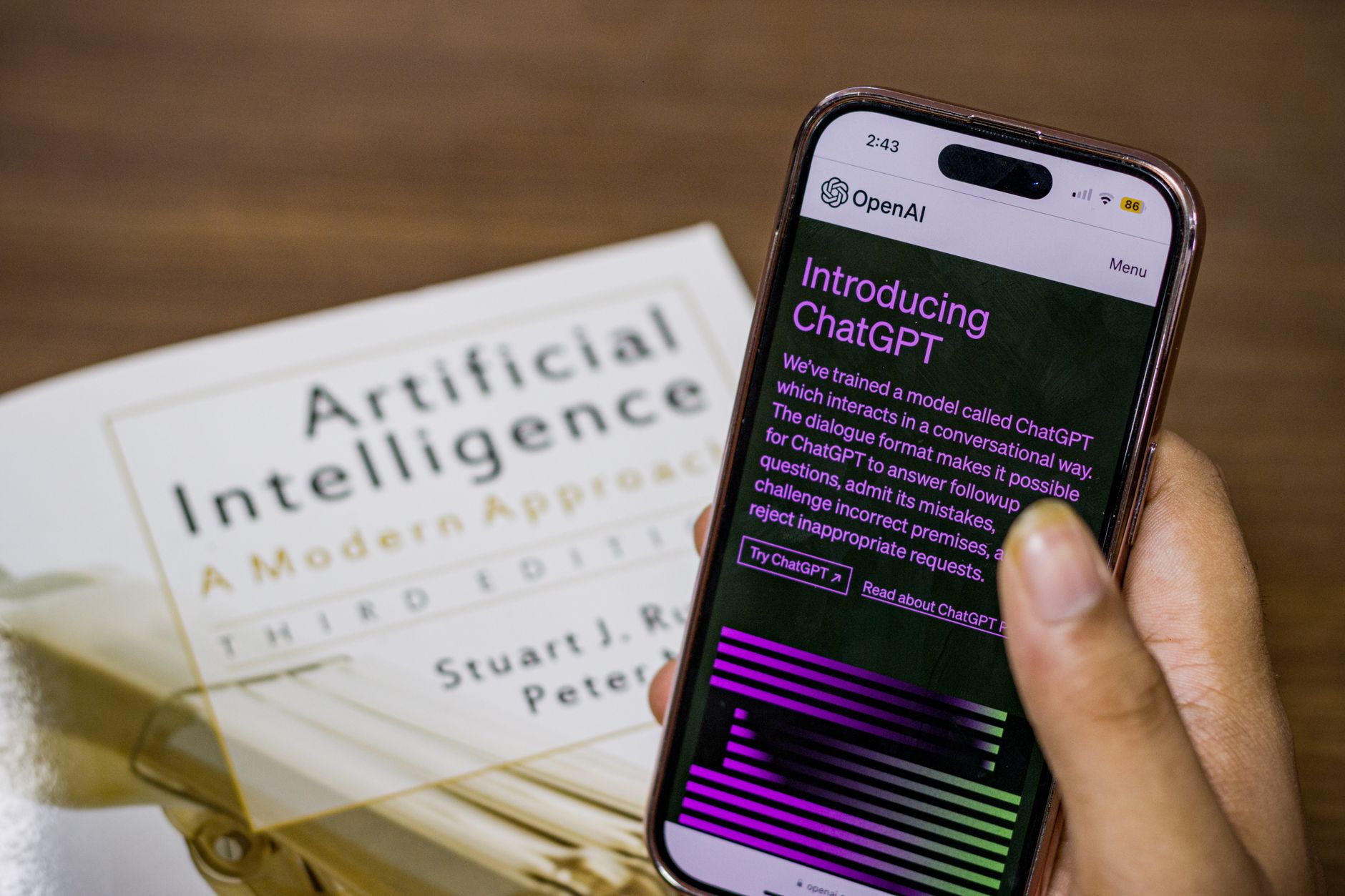
You have probably heard that AI can make you more productive. Maybe you tried a chatbot once, got a generic answer, and closed the tab. The problem is rarely you. Most people need specific prompts, a clear task, and a simple routine. This guide shows 10 AI tools that actually work for everyday tasks. Each tool below has a plain-English setup and a copy-paste prompt you can use today. If you are new, start with ChatGPT personal use ideas before moving on.
These 10 tools range from free chatbots to paid upgrades. You will see ChatGPT, Claude, Google Gemini, Notion AI, Microsoft Copilot, Perplexity, ChatGPT Plus, Claude Pro, Google AI Studio, and Copilot Pro. Do not try all ten at once. Pick one tool this week. Use it for a real task. Add another tool only when the first one saves you time. This approach prevents tool fatigue and makes the habit stick.
The prompts below are concrete. You can copy them, change the words in brackets, and run them. For example, instead of typing ‘help me write an email,’ you will use a prompt that includes the audience, tone, and action. This small change often doubles the quality of the output. Some tools need a free account. Others have paid tiers. I will tell you which upgrade is worth it. You do not need any technical background.
We also cover warnings. AI tools make mistakes. They can waste time if you ask vague questions. They can also read sensitive data, so you need a simple privacy rule. For example, do not paste bank account numbers or passwords into a chatbot. The routine at the end ties everything together. It takes about 15 minutes to set up and can save three to five hours per week. Start with low-stakes tasks until you trust the output.
What You’ll Need
- A free ChatGPT or Claude account
- A Google account for Gemini
- A Microsoft account for Copilot
- A Notion account for Notion AI
- A browser for Perplexity
- Optional paid subscription after testing
How Do You Use AI for Productivity?
- Start with ChatGPT for drafting and rewriting
ChatGPT is the easiest starting point. Go to OpenAI and create a free account. Ask it to draft an email, rewrite a paragraph, or outline a report. The free version works well for daily tasks. The model behind ChatGPT is fast enough for regular writing. The key is to give a role, a task, and an output format.
Here is a copy-paste prompt for a tricky email:
You are a polite but direct assistant. Draft an email to a client who missed a deadline. Acknowledge their workload, ask for a new date, and request a reply by Friday. Keep it under 120 words. Use a warm but firm tone.
Change the scenario and run it again. It will produce a solid draft in seconds. You can then say ‘make it more casual’ or ‘shorten it by 30 percent.’
ChatGPT also helps with planning. Ask it to turn a messy list into a step-by-step plan. This connects to AI for productivity, where you can find more workflow ideas. Start with low-stakes writing, not legal or medical advice.

- Use Claude for long documents and summaries
Claude is built by Anthropic. It handles long PDFs, meeting transcripts, and dense reports well. Go to Anthropic, open a chat, and attach a document. Ask it to summarize in plain English. The free version has file upload limits, but works for most home and small business tasks. Claude Pro costs about $20 per month if you need more capacity.
Use this prompt with a long document:
Read the attached document. Give me a summary in 8 bullet points. Then list every action item with the person responsible and the deadline. If a deadline is missing, write 'not stated'. Keep the summary under 200 words.
This prompt turns a dense report into a checklist. You can paste the checklist into a note or send it to a colleague.
Claude is also good at converting rambling voice memos into clean notes. Paste a transcript and ask for a decision log. The strong point is context length. It remembers more of a long conversation without losing the thread.
- Clear your inbox and calendar with Google Gemini
Gemini is Google’s AI assistant. If you use Gmail, Google Docs, or Google Calendar, it can save you from switching tabs. Open Gemini in a browser or use the side panel in Workspace. Ask it to draft a reply, summarize an email thread, or create a calendar event from a message. You need a free Google account.
Use this prompt for a messy email thread:
Summarize the last 10 emails in this thread. Write one paragraph that starts with 'The main decision is...' Then list three open questions. Do not include names or sensitive details.
Gemini also helps with calendar triage. Paste a list of meeting invites and ask:
Turn these meeting invites into a weekly plan. Group them by day. Flag any back-to-back blocks longer than 3 hours. Suggest one 30-minute break each day.
Google AI’s documentation notes that Gemini can read your Workspace data only if you enable the extension. Start with a single email summary before connecting your whole inbox. For more prompts, read use AI to save time. The real benefit is staying inside Gmail instead of copying text into another chatbot.
- Turn messy notes into action items with Notion AI
Notion AI lives inside Notion pages. Highlight any paragraph, click Ask AI, then choose Summarize, Action items, or Improve writing. It is best for turning messy meeting notes into clean to-do lists. You do not need to leave the page.
Use this prompt after a meeting:
Turn these meeting notes into a decision log. Format as a table with three columns: Decision, Owner, Due date. Add a final row called 'Follow-up' with the next meeting date and time.
This works if you keep notes in Notion. It also helps for project briefs. The AI writes inside the page, so you can edit inline without copying.
Ask Notion AI to find gaps in a plan. Paste a project plan and type:
What is missing from this plan? List risks, missing owners, and unclear deadlines.
If you track study notes, you can ask it to turn notes into self-tests without leaving Notion.
- Speed up Word, Excel, and Outlook with Microsoft Copilot
Copilot is built into Microsoft 365 apps. In Word, it can draft sections. In Excel, it can suggest formulas. In Outlook, it can summarize long threads. Open the Copilot pane in any Office app. You need a Microsoft account. Some features are free. The full version requires Copilot Pro.
Use this Excel prompt:
In Excel, create a formula that calculates the average monthly spend from column B only for rows where column A is 'groceries'. Then explain the formula in one sentence.
This prompt builds the formula and teaches you what it does. You can copy the answer into a cell and adjust ranges.
For Outlook, use:
Summarize this email chain in three bullets. Highlight the final decision and any action that I need to take.
Copilot also has a privacy setting for which data it can read. Review it before connecting work accounts. The basic rule follows AI privacy guide: do not let AI read sensitive emails until you know how data is stored.

- Research faster with Perplexity and cited answers
Perplexity works like a search engine that answers with sources. It is useful when you need facts, prices, or comparisons. Open Perplexity in a browser. The free version works without an account. Ask a question, and it returns an answer with numbered citations you can click.
Use this prompt for a price comparison:
Compare the current monthly prices of ChatGPT Plus and Claude Pro. Use only official pricing pages from OpenAI and Anthropic. Present the answer as a table with columns: Tool, Monthly price, Key limit, Source link.
This prompt forces the AI to cite sources. You can verify the answer in seconds.
Perplexity is also great for product research. Ask:
Find three budget laptops under $600 with at least 16GB RAM. For each, give the price, weight, and one drawback. Link to the product page.
You can then click through to the actual listing. This is a good habit before buying. It is faster than reading ten forum threads.
- Decide if ChatGPT Plus or Claude Pro is worth $20 per month
Both ChatGPT Plus and Claude Pro cost about $20 per month USD. The choice depends on what you do. ChatGPT Plus is better for general writing, image generation, and custom GPTs. Claude Pro is better for long document analysis and careful reasoning. If you mostly write emails and social posts, ChatGPT Plus may feel more useful.
Before upgrading, run this same prompt in both free versions:
You are a productivity coach. Give me a one-week plan to reduce email time by 30 percent. Include a daily 10-minute task and one simple automation. Keep it under 150 words.
Compare the tone, length, and usefulness of the two answers. The better match for your style is the one to upgrade.
If you only need one paid tool, start with ChatGPT Plus. It has faster responses and more integrations. That said, if your work involves long PDFs or research papers, Claude Pro often wins. For a detailed comparison, read is ChatGPT Plus worth it. Avoid paying for both unless you already use each weekly.
- Test advanced prompts for free with Google AI Studio
Google AI Studio is a free workspace for testing Google’s Gemini models. You do not need to know how to code. Open Google AI Studio, create a free key, and use the chat interface. It lets you adjust temperature and output length. This is useful when you want a more precise answer than the consumer chatbot.
Use this prompt for a reusable meeting agenda:
System: You are a professional meeting facilitator.
User: Create a 5-item agenda for a 30-minute weekly team check-in. Each item must have a timer and a clear outcome. End with a 2-minute wrap-up.
Save this prompt and reuse it every week. You can change the meeting length and team name.
Google AI’s documentation says you can try Gemini models for free with rate limits. This is a good way to test advanced prompts without paying. For more no-cost options, read free AI tools 2026. The goal is not to become a developer. It is to see whether a more detailed prompt changes the output.
- Build a weekly AI productivity routine you can stick to
Pick one tool from this list and use it for a single real task this week. For example, use ChatGPT on Monday to draft a difficult email. Use Claude on Wednesday to summarize a long PDF. Use Notion AI on Friday to turn meeting notes into action items. The goal is a habit, not a perfect stack.
Use this weekly planning prompt with any chatbot:
Act as my weekly productivity assistant. Here is my task list: [paste tasks]. Group these tasks by energy level: high, medium, low. Then schedule them into a 5-day week. Keep mornings free for one deep work block.
This prompt forces you to prioritize instead of reacting to every notification.
Do not chain too many tools at first. That creates busywork. Start with one tool and one daily trigger. For example, every morning at 9 a.m., open ChatGPT and plan your day. After one week, add a second tool only where you felt friction. A simple routine beats a fancy setup. The tools in this guide cover drafting, summarizing, research, and planning.

Red Flags & Warnings
- 🚨 Do not paste bank account numbers, passwords, or medical records into a chatbot. AI tools store prompts on company servers, even if you delete the chat.
- 🚨 Never trust an AI-generated source without clicking the citation. Chatbots can invent plausible-looking URLs or quote numbers wrong.
- 🚨 Avoid vague prompts like ‘write a report.’ Always include audience, length, tone, and the action you want. Vague prompts waste more time than they save.
- 🚨 Do not connect Gmail, Calendar, or Notion to an AI tool until you review its data access settings. Disable any feature that reads private email by default.
- 🚨 Do not buy a paid tier in the first week. Test the free version on three real tasks first. Most people only need one paid subscription, not four.
- 🚨 Watch for over-editing. AI can produce decent drafts, but spending 40 minutes perfecting a prompt can cancel the time saved.
Frequently Asked Questions
Which AI tool should I start with if I am not technical?
Start with ChatGPT. Create a free account, paste one copy-paste prompt from this guide, and use it on a real email. It handles most writing and planning tasks well. After a week, add Claude if you need long document summaries.
Do I need to pay for AI productivity tools?
No. The free versions of ChatGPT, Claude, Gemini, and Perplexity are enough for most basic tasks. Paid upgrades like ChatGPT Plus or Claude Pro help with speed, file uploads, and longer context. Test free for a week before paying.
Can AI really save me time each week?
Yes, but only with specific prompts. A clear prompt can turn a 30-minute email draft into a 5-minute edit. The time savings come from drafting, summarizing, and research. It rarely comes from vague one-line questions.
Is my data private when I use these tools?
Not always. Free tools may store prompts for training, though some let you opt out. Do not paste sensitive financial or medical data. Review each tool’s privacy settings before connecting Gmail, Calendar, or Notion.
What is the biggest mistake people make with AI productivity?
They ask vague questions and expect magic. A generic prompt like ‘help me work’ returns a generic answer. A specific prompt with audience, length, and action returns something usable. The second mistake is testing too many tools at once.
Can I use these tools together?
Yes, but start with a simple routine. For example, use ChatGPT for drafting, Claude for long documents, and Perplexity for research. Do not connect them all to your inbox at once. Add tools only when you notice a specific time leak.
What Should You Remember?
- Start small: Use one free tool on a real task before adding more.
- Copy the prompts: Specific prompts with audience, length, and tone save the most time.
- Match the tool to the job: ChatGPT for writing, Claude for long docs, Perplexity for cited research.
- Protect your data: Never paste passwords, bank details, or medical records into a chatbot.
- Test before paying: Try free versions for a week before buying ChatGPT Plus or Claude Pro.
- Build a routine: A weekly 15-minute planning prompt beats random tool hopping.
This article is for general information only. AI tools, pricing tiers, and free limits change frequently, so verify current features and pricing on the vendor’s own site before committing. Some links may be affiliate links that support this site at no cost to you.