
Parenthood runs on a mountain of small decisions every single day. What is for dinner? Who is picking up the kids? Is the permission slip signed? AI can absorb some of that load without taking over your judgment. You do not need to be technical to get value. You just need a clear task and a simple prompt. How to use AI in daily life walks through the fundamentals. This guide builds on that foundation for busy parents.
Most parents already have the only tools they need. ChatGPT, Claude, and Gemini offer free tiers with enough power for family planning. You can copy a prompt, paste it, and get a usable plan in seconds. You might also use Notion AI for shared notes. The catch is that AI works better when you give it specific constraints. Free AI tools in 2026 compares the main options. That helps you choose without paying first.
This guide shows a complete family AI setup in seven steps. You will learn to create meal plans, homework routines, chore systems, and school emails. Each section includes copy-paste prompts you can use right now. We also cover privacy rules because family data needs extra care. You will find specific warnings and a weekly review routine. AI for productivity has more ideas for reclaiming time.
Before you begin, remember that AI is a helper, not a parent. You still make the final call on safety, values, and care. Review every output before it reaches your kids. The tools make mistakes. They can sound confident and still be wrong. AI privacy guide explains how to reduce data exposure. Start there if you have privacy concerns. Then work through the steps below.
What You’ll Need
- ChatGPT, Claude, or Gemini account
- Google Calendar or shared family calendar
- A notes app for your Family Command Center
- Optional Notion AI for shared notes
How Do You Manage Family Life With AI?
- Set up a family AI account with kid-safe rules
Choose one AI tool for family admin. ChatGPT, Claude, and Gemini all have free versions. If you want longer memory or faster responses, compare paid tiers before you buy. Is ChatGPT Plus worth it? and Claude Pro review outline the differences. Use one shared adult account for all family tasks. Do not let younger children use the account directly.
Check the age rules first. OpenAI’s help center states that ChatGPT users must be at least 13 years old. You can confirm this on OpenAI. That means a parent or caregiver should operate the tool for younger children. It is not just a good idea. It is a platform rule.
Turn on privacy controls before you paste any family information. In ChatGPT, open Settings, then Data controls, then turn off Improve the model for everyone if you do not want family conversations used for training. Google’s Gemini Apps Privacy Notice says Web & App Activity saves conversations up to 18 months by default. You can review those settings on Google AI. The exact menu names change, but the principle is the same: reduce data retention where possible.
Create a family prompt library in a notes app or shared document. Save prompts that work so you can reuse them without retyping. Start with this one. Prompt: Act as a family assistant. Do not give medical, legal, or financial advice. Keep answers kid-friendly and practical. First task: write a weekly dinner plan for a family of five.
Connect a shared calendar if you use Google Calendar or Apple Calendar. You will feed the AI your schedule later. For now, just make sure one adult controls the AI account and the calendar. This setup step connects directly to building your family command center next.
- Build a shared family command center
AI works best when it has the right details. Create one note or document called Family Command Center. Add names, ages, allergies, school times, activity days, and bedtime routines. Keep it vague on address and full legal names. Use first names only or initials if you prefer. This keeps the data useful but less sensitive.
Use the command center as context in your prompts. Here is a paste-ready example. Prompt: Here is our family command center: [paste your details]. Based on this, create a weekly chore chart for two adults and two kids ages 7 and 10. Make chores age-appropriate and rotate every two weeks. This turns a vague request into a plan you can actually use. AI for productivity has more ways to structure repeating tasks.
Add routines to the command center. Ask the AI to build a morning checklist for each child. Prompt: Create a printed morning checklist for a 7-year-old. Include five steps. Use no more than four words per step. Use a friendly tone. Print it and put it on the fridge. That reduces the number of times you have to repeat get ready.
If you prefer an all-in-one workspace, you can copy the command center into Notion AI. It can summarize notes and extract action items. But you do not need Notion to make this work. A plain document is enough. The key is consistency. Use the same details every time you start a family prompt.
Review the AI output for feasibility. A 7-year-old cannot scrub toilets safely. A 10-year-old might need reminders for daily chores. Adjust the chart together and keep it realistic. This step prepares you for meal planning, where constraints matter even more.
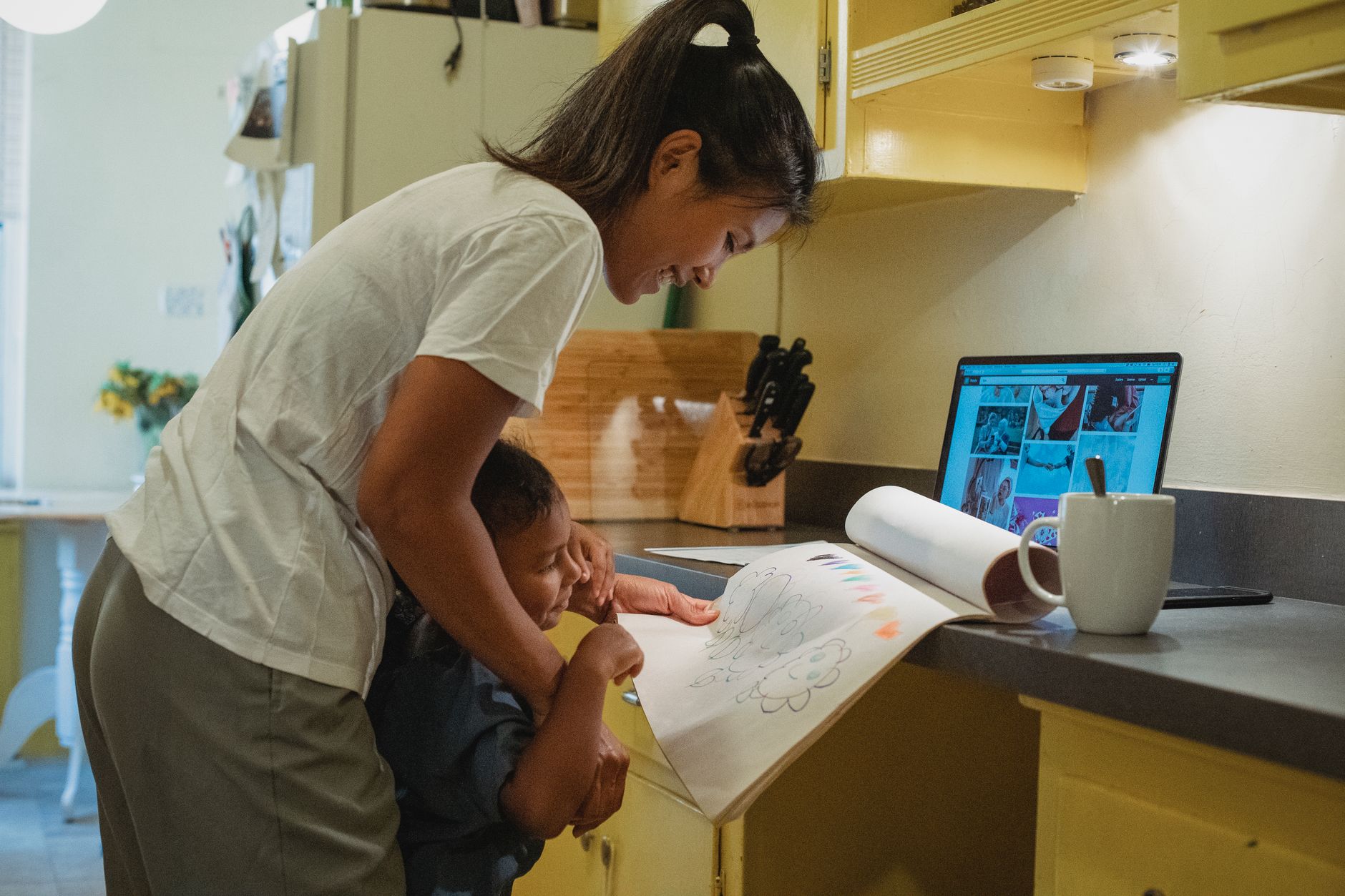
- Create weekly meal plans with dietary guardrails
Meal planning eats up hours every week. AI can turn your constraints into a plan in about a minute. Include allergies, budget, picky foods, and time limits in every prompt. That specificity is what makes the output useful. AI for meal planning covers this in more depth.
Start with a basic weeknight plan. Prompt: Plan 5 weeknight dinners for a family of four. No peanuts or shellfish. One child hates broccoli. Dinners must take under 30 minutes. Budget under $120 for all ingredients. Include a grocery list grouped by store aisle. This prompt gives the AI clear guardrails. You get a usable list instead of random recipes.
Add breakfast and lunch if you need them. Prompt: Add simple breakfasts and packed lunches for two kids. One lunch cannot contain nuts due to school policy. Keep lunches under 10 minutes to pack. The more constraints you add, the fewer substitutions you make later.
Use AI to reduce food waste. Prompt: We have cooked chicken, rice, and spinach. Give three different dinner ideas that use these ingredients. One must be vegetarian if possible. This turns leftovers into a plan instead of a fridge mystery. The AI may not know your exact pantry, so check the list before shopping.
Always double-check nutritional claims. AI can misstate portion sizes or allergy risks. Use it for meal ideas, not dietary therapy. If your child has a medical condition, confirm with a doctor or dietitian. This step connects to homework help, where guidance is also more useful than direct answers.

- Set up homework help that teaches, not just answers
AI can explain math, grammar, or science concepts at a child’s level. But you need rules. Ask the AI to guide, not give the final answer. That way your child learns the material instead of copying. AI for learning skills has more study techniques.
Use a concrete homework prompt. Prompt: My 4th grader is stuck on equivalent fractions. Explain the concept using pizza slices. Do not solve the worksheet. Then give two practice questions with answers at the end. This keeps the AI in tutor mode. The child still does the work.
For reading comprehension, ask for discussion questions. Prompt: My 8-year-old read a chapter about a forest. Ask her five discussion questions that build comprehension. Keep questions simple and curious. This works better than asking the AI to summarize the chapter for her.
For older kids, use AI to create quizzes. Prompt: Create a 10-question quiz on the water cycle for a 6th grader. Include a mix of multiple choice and short answer. Provide an answer key. Use it before a test to check understanding. ChatGPT personal use ideas includes more study prompts.
Do not let AI write essays or projects for kids. That hurts learning and can break school honor codes. Instead, ask for outlines or feedback. Prompt: Review my 7th grader’s essay introduction. Point out one area to clarify and one strength. Do not rewrite it. This teaches revision without doing the work.

- Draft school and activity emails faster
Parent inboxes overflow with school, sports, and appointment messages. AI can draft kind, clear emails in seconds. You just paste the context. That saves time and mental energy. Use AI to save time offers other quick wins.
Start with a simple absence note. Prompt: Write a short email to my son’s teacher. Subject: absence on Friday. We have a family commitment. Ask if there is any work to catch up on. Tone: warm and respectful. Keep under 100 words. You can send it as is or tweak one line.
For difficult conversations, ask the AI to soften the tone. Prompt: Rewrite this email to be more collaborative: [paste your draft]. Do not add new facts. Keep length similar. This is useful when you are frustrated and want to avoid sounding harsh.
Use AI for logistics texts to other parents. Prompt: Draft a group text for soccer parents about the changed practice time. Include the new time, location, and a reminder to bring water. Use a friendly tone, max 3 sentences. Copy it into your group chat and make small edits if needed.
Always read before sending. AI can sound too formal or miss context. It does not know your relationship with the teacher or coach. Treat every draft as a draft. This step pairs well with budgeting, where AI can also prepare you for conversations.
- Manage family budget and logistics with AI
AI can help compare costs, plan errands, and avoid missed payments. But never paste full bank account numbers, passwords, or card details. Use categories and rounded amounts. AI for personal finance explains safer money prompts.
Start with a monthly budget. Prompt: Create a family budget for $6,500 monthly take-home pay. Include rent $2,200, utilities $250, groceries $900, insurance $400, and one kid activity $150. Suggest savings and a fun fund. Use simple categories. This gives you a starting point, not final financial advice.
Plan errands by location to save driving time. Prompt: We need to go to the pharmacy, grocery store, and post office. The pharmacy is at Main and 2nd. The grocery is at Oak and 5th. The post office is at Main and 7th. Give the most efficient route from our home near 3rd and Main. Avoid highways. The AI can map a logical order, but verify with your preferred map app.
Use AI to prepare for appointments. Prompt: Create a list of questions to ask the pediatrician about my child’s seasonal allergies. Keep questions short and specific. This helps you use doctor time well. It also reduces the chance you forget a concern.
Double-check all numbers. AI may calculate incorrectly or miss a bill. Use a calculator for final amounts. Then bring your best plan to the family agreement step.
- Create a family AI agreement and review routine
Write a one-page family AI policy. Include who can use AI, for what tasks, and what is off-limits. This prevents misuse and confusion. AI privacy guide has more details on setting household data rules.
Use a paste-ready policy prompt. Prompt: Write a simple family AI agreement for two adults and one 12-year-old. Include rules about privacy, homework, and screen time. Use language a middle schooler can understand. Keep it under 150 words. Print it and put it near the computer. Review it together.
Set a weekly 10-minute review. Each Sunday, ask the AI to combine the week’s meal plan, schedule, and to-dos into a one-page summary. Prompt: Turn this week’s calendar and meal plan into a one-page family brief. Include top three priorities each day and any missing tasks. This gives you a simple Sunday snapshot.
Track what works. Keep a note of prompts that saved time. If a prompt failed, rewrite it with more detail. AI gets better with better instructions. Change one variable at a time.
The goal is less mental load, not more screens. Use AI behind the scenes. Then close the laptop and go be together. That is the real point of managing family life with AI.
Red Flags & Warnings
- 🚨 Never enter a child’s full name, school name, birthdate, or home address into an AI tool. Use initials or first names only and keep identifying details out of prompts.
- 🚨 Do not let children under 13 use ChatGPT without direct adult supervision. OpenAI’s terms set a minimum age, and older children still need guidance on privacy.
- 🚨 Always review AI-generated medical, legal, or special education advice with a qualified professional. AI can sound confident and still give wrong information.
- 🚨 Turn off conversation history or model training where possible before pasting family schedules. Google stores Gemini activity up to 18 months by default if Web & App Activity is on.
- 🚨 Do not rely on AI to remember critical appointments, allergies, or medication times. Keep a human-controlled calendar or alarm as the final backup.
- 🚨 Check every AI-written school email for tone before sending. AI can sound too formal, cold, or miss the relationship you have with the teacher.
Frequently Asked Questions
Is AI safe to use for family schedules?
Yes, if you keep personal details limited and review the output. Use initials instead of full names and avoid addresses. Turn off training data features when possible. AI is a planning tool, not a guardian.
Which AI tool is best for parents?
ChatGPT is the easiest starting point for most families. Claude is strong for longer documents and nuanced writing. Gemini is useful if you already use Google Calendar and Gmail. Free tiers work fine for weekly planning.
Can AI help with picky eaters?
Yes. Give the AI a list of accepted and rejected foods, then ask for meals that hide or substitute the disliked items. For example, ask for vegetable sauces or muffins with grated carrots. Always confirm the final recipe matches your child’s needs.
How do I keep my child's data private?
Use first names only, do not share school or birthdate details, and turn off model training where available. Google’s Gemini Apps Privacy Notice says conversations may be stored up to 18 months with Web & App Activity on. Review settings before use.
Can AI help with special needs or learning differences?
AI can generate checklists, social stories, and simplified instructions. But it is not a therapist or special education expert. Use it as a draft tool and have a professional review anything used in a formal plan.
What should I never ask AI to do for my family?
Never ask AI to diagnose a child, prescribe a treatment, write a full school essay for a kid, or manage critical safety tasks. Also never paste passwords, full bank numbers, or full legal documents into a chat.
What Should You Remember?
- Start small: Use AI for one weekly task, like a meal plan, before adding more.
- Use paste-ready prompts: Copy the examples in this guide and adjust the details for your family.
- Protect kid data: Use first names only and turn off training features before sharing schedules.
- Review everything: AI output is a first draft. Check facts, tone, and safety before use.
- Set age rules: Keep AI accounts adult-controlled and follow each platform’s minimum age.
- Build a command center: Store family details in one document so prompts reuse the same context.
- Make it weekly: Spend 10 minutes on Sunday turning AI output into a one-page family brief.
This article is for general information only. AI tools, pricing tiers, and free limits change frequently, so verify current features and pricing on the vendor’s own site before committing. Some links may be affiliate links that support this site at no cost to you.